Using QZS L6 Tool from Docker
Introduction
I have released open-source software QZS L6 Tool (Quasi-Zenith Satellite L6 band tool) that aims to provide real-time access to positioning satellite signals. These codes are written in Python and are primarily intended for use on macOS and Linux.
By using Docker, we can use QZS L6 Tools and other tools from Windows and other operating systems, and we can simplify management by eliminating the need for explicit library installation.
Limitations of QZS L6 Tool
The QZS L6 Tool was initially developed to understand the signal content of high-precision positioning services (CLAS and MADOCA-PPP) broadcast by the Quasi-Zenith Satellite System (QZSS), Michibiki, in the L6 frequency band. I have now updated to read information on RTCM (Radio Technical Commission for Maritime Services), Galileo HAS (High Accuracy Service), and BeiDou PPP-B2b (Precise Point Positioning - B2b band).
QZS L6 Tool is intended to be used with external tools such as str2str from RTKLIB and Netcat (nc). This integration utilizes a pipe mechanism.
However, in Windows command line interpreters (cmd.exe) and PowerShell, the pipe does not pass binary data, so intermediate data had to be saved to a file and commands executed sequentially.
Additionally, executing QZS L6 Tool sometimes required a specific Python version. It uses the bitstring module for interpreting binary data and the galois module for calculating the inverse matrix of the Galois field in Galileo HAS. Although not frequently, updates to these modules would not keep up with the latest Python versions. Therefore, the QZS L6 Tool recommended using a Python virtualization environment such as pyenv or venv.
Using Docker can bypass these limitations.
Building Docker Images
To use Docker, we chose Docker Desktop here. This is because if something goes wrong, we can terminate containers and delete images with a mouse click. Docker Desktop is free software, but for enterprise use, a paid subscription may be required.
First, download the QZS L6 Tool from GitHub as a ZIP file, or using git.
git clone https://github.com/yoronneko/qzsl6tool
If you’re using Git on Windows, please run git config --global core.autocrlf input beforehand. This is to prevent newline characters (CR) from being included at the end of Python code lines.
Next, build the Docker image with a name such as qzsl6tool. Please remember to include the dot . at the end of the build command line. Then, we verify that the docker images command shows the name of the image we just created.
cd qzsl6tool
docker build -t qzsl6tool .
docker images
Executing Docker Images
Functionality Test
First, we will verify through internal tests that the Docker image has been created correctly. All tests show the word Passed in green when the image has been created correctly.
docker run -it --rm qzsl6tool "cd /root/qzsl6tool/test; ./do_test.sh"
Here, the -it option enables interactive mode and terminates the container after execution. Without i option, the output will be treated as not being from a terminal and will be displayed in black and white. The --rm option removes the container from memory after execution.
Understanding observational data using NTRIP
Next, we will use RTKLIB’s str2str to connect to the NovAtel OEM729 receiver at Hiroshima City University’s GNSS observation station, and then supply its output to rtcmread.py to decode the RTCM data.
docker run -it --rm qzsl6tool "str2str -in ntrip://ntrip.rnav.info.hiroshima-cu.ac.jp:80/OEM7 2>/dev/null | rtcmread.py"
Understanding augmentation data using NTRIP
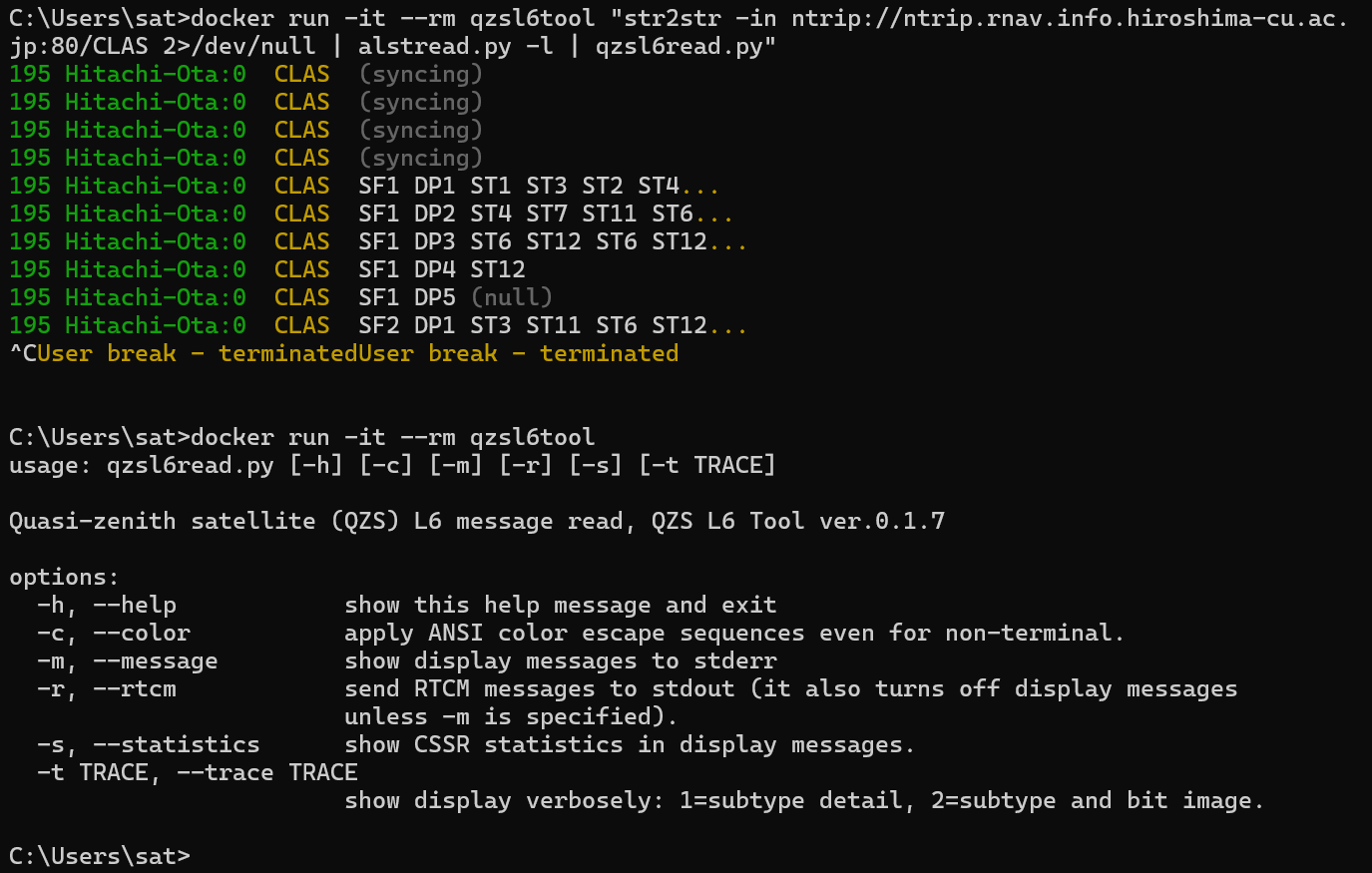
For observing CLAS augmentation data, we read the raw data from the Allystar HD9310C receiver using str2str, extract the L6 data with alstread.py, and decode the L6 data with qzsl6read.py.
docker run -it --rm qzsl6tool "str2str -in ntrip://ntrip.rnav.info.hiroshima-cu.ac.jp:80/CLAS 2>/dev/null | alstread.py -l | qzsl6read.py"
Conclusion
Using Docker containers is convenient because they not only allow you to run on many platforms, but also minimize the impact on your everyday PC.
Related article(s):
- CLAS multistream transmission facility IDs and an update to QZS L6 Tool 15th September 2026
- CLAS multistream transmission pattern ID 19th January 2026
- CLAS multi-stream test broadcast 1st July 2025
- Display of MADOCA-PPP ionospheric delay information using QZS L6 Tool 16th August 2024
- QZS L6 Tool output format change 14th April 2024
- Health information expression for QZSS 7-satellite configuration 12th April 2024
- Galileo Timing Service Message 6th April 2024
- L1S signal analysis with QZS L6 Tool 11st November 2023
- Galileo HAS live stream 25th July 2023
- HAS message display capability on QZS L6 Tool 5th March 2023
- Trial delivery of QZSS's MADOCA-PPP started 18th August 2022
- Capacity analysis of CLAS satellite augmentation information using QZSS archive data 9th June 2022
- QZSS CLAS tropospheric delay augmentation information for remote islands in Japan 17th May 2022
- Compact SSR display capability on QZS L6 Tool 29th March 2022
- Release of QZS L6 Tool, a positioning satellite message display tool 3rd February 2022